AI Session Search
Find an earlier AI session from any word you or the AI wrote in it, then press Enter to continue where you stopped.
AI session search needs an active licence.
What It Searches
AI session search covers the sessions of these tools on your computer:
| Tool | Sessions |
|---|---|
| Claude Code | ~/.claude (or CLAUDE_CONFIG_DIR) |
| Codex CLI | ~/.codex (or CODEX_HOME) |
| OpenCode | ~/.local/share/opencode (or XDG_DATA_HOME/opencode) |
It also finds sessions you started outside DevWorkspace Pro, for example in another terminal app.
It searches your prompts, the replies of the AI and the session titles. It does not search tool output, such as command output or the files the AI read.
Open the Search
| From | Action |
|---|---|
| Keyboard | Press ⌘+Shift+J (Ctrl+Shift+J on Windows and Linux). Press it again to close the search. |
| Top bar of the app | Click the purple search icon (Search AI sessions). |
The shortcut also works when a headless terminal window is open. The search opens above the window, and when you close it with Esc, you are back in the terminal.
Top bar icons

| Icon | Opens |
|---|---|
| Folder with a magnifier | The project switcher (⌘+K or Ctrl+K) |
| Purple lines with a magnifier | AI session search (⌘+Shift+J or Ctrl+Shift+J) |
Find a Session
- Type one or more words. The list updates as you type.
- Use ↑ and ↓ to move through the sessions.
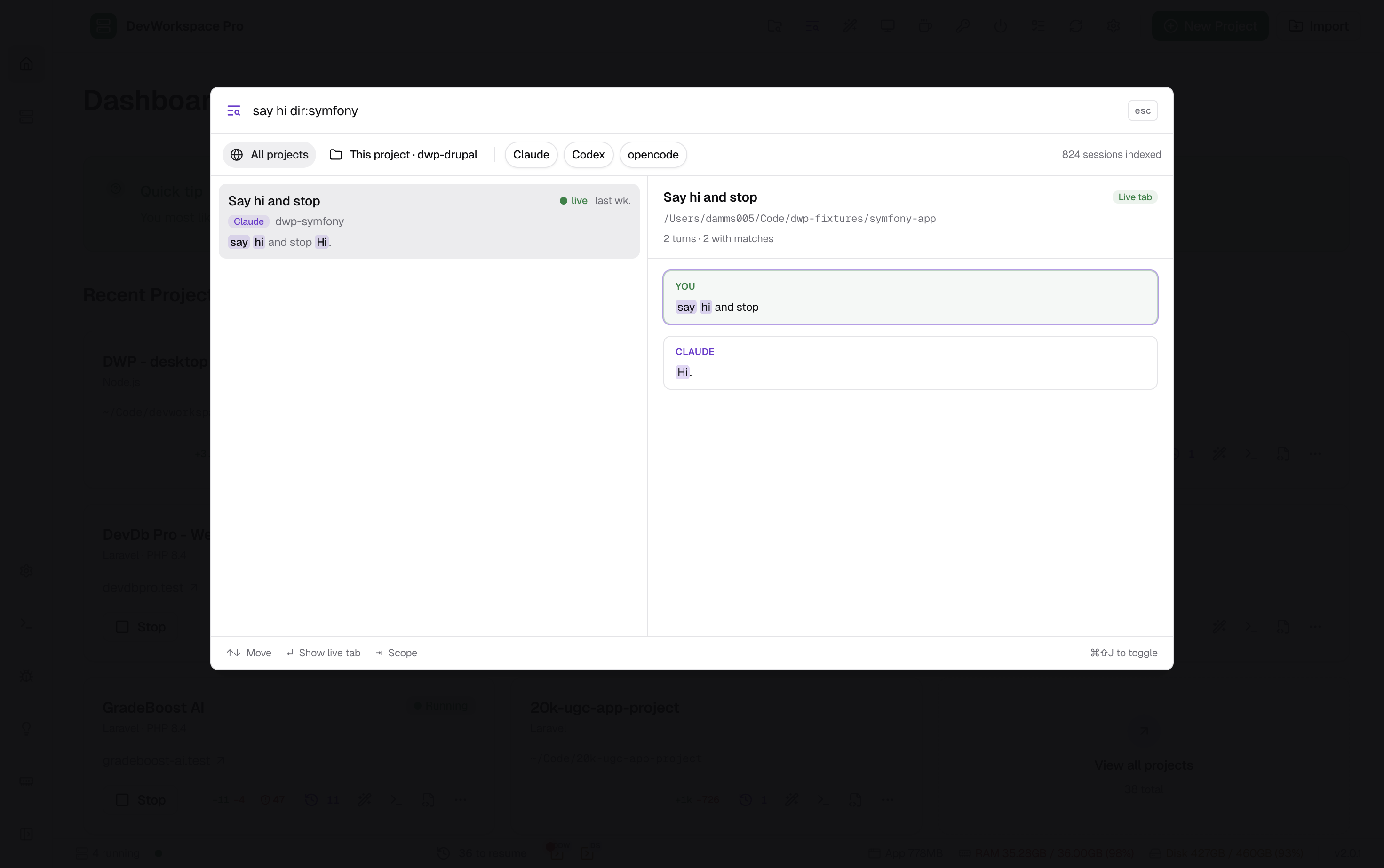
- Read the conversation in the preview on the right. The preview jumps to the part that matches best, with your words highlighted.
- Press Enter, or click the session.
With nothing typed, the list shows your most recent sessions under Recent.
In the preview, the replies of the AI show as formatted Markdown, with headings, lists, tables, links and highlighted code. Your words are highlighted there too, even inside code. Your own prompts show as plain text.
The preview also shows the work of Claude subagents, in the order it happened. A subagent turn has a dashed border and the label Subagent task or Subagent.
Each result shows:
- The title of the session
- The tool: Claude, Codex or opencode
- The project, or the folder name when the folder is not in a project. A session in a subfolder of a project shows that project.
- When the last message was sent
- A green dot and live when a headless terminal tab is running the session now
- A short piece of the text, with your words highlighted
A word also matches longer words that start with it, so deploy finds deployment too. The search first looks for sessions that have all your words. If none has all of them, it shows the sessions that have some of them, with the best matches first.
The search also allows small typing mistakes. A word of 4 to 7 letters can have one letter wrong, missing, added or swapped, and a word of 8 letters or more can have two. So authentcation still finds authentication. Words shorter than 4 letters must match as you type them. Sessions that have your exact word come before sessions that only have a close spelling, and the close spellings are highlighted too.
To find an exact phrase, put it in double quotes: "like the default". The search then shows only sessions that have those words together, in that order. Other forms of the words do not match, so "like the default" does not find like the defaults. Typing mistakes are not allowed inside quotes.
Scope
| Scope | Searches |
|---|---|
| All projects | All sessions. Sessions in the current project folder come higher in the list. |
| This project | Only the sessions of the current project and its subfolders |
If a headless terminal window is showing, the current project is the folder of that terminal. If not, it is the open project. When there is no current project, you cannot select This project.
Press Tab in the search field to switch between the two. To choose the scope the search starts with, see Settings.
Filter by tool
Click Claude, Codex or opencode to show only the sessions of that tool. You can select more than one. Click a tool again to remove the filter. Only the tools you index show here.
Filters in the search text
You can also type filters in the search field:
| Filter | Shows | Example |
|---|---|---|
agent:<tool> | Only sessions of that tool: claude, codex or opencode | agent:codex migration |
dir:<text> | Only sessions whose folder contains the text | dir:shop checkout |
If the folder name has spaces, put it in quotes: dir:"my project".
Open a Session
When you press Enter:
| If the session | DevWorkspace Pro |
|---|---|
| Is running in a headless terminal tab (live) | Shows that tab. If a terminal window of another project is open, that window closes and the tab of the session shows instead. |
| Is not running | Resumes the session in a new headless terminal tab, in the folder of the session. |
The footer of the search tells you which one will happen: Show live tab or Resume in new tab.
If you pick the same session again later, DevWorkspace Pro shows its tab. It does not start the session a second time.
Hover over the folder of a result to see the full path. Hover over the date in the preview to see how long ago the last message was.
Add the folder of a session as a project
Some sessions are in folders that are not DevWorkspace Pro projects. For such a session, the preview shows an Add as project button next to the folder path. Click it to open Import projects with that folder, then import it the way you import any other folder.
The Index
DevWorkspace Pro keeps an index of your sessions, so the search is fast.
- The first time, and sometimes after an update, DevWorkspace Pro builds the index in the background. You can search while it runs, and the search shows Indexing… until it is done.
- After that, DevWorkspace Pro adds new and changed sessions by itself. A new message shows in the search within a few seconds.
- When a tool deletes a session file, the session leaves the index.
Settings
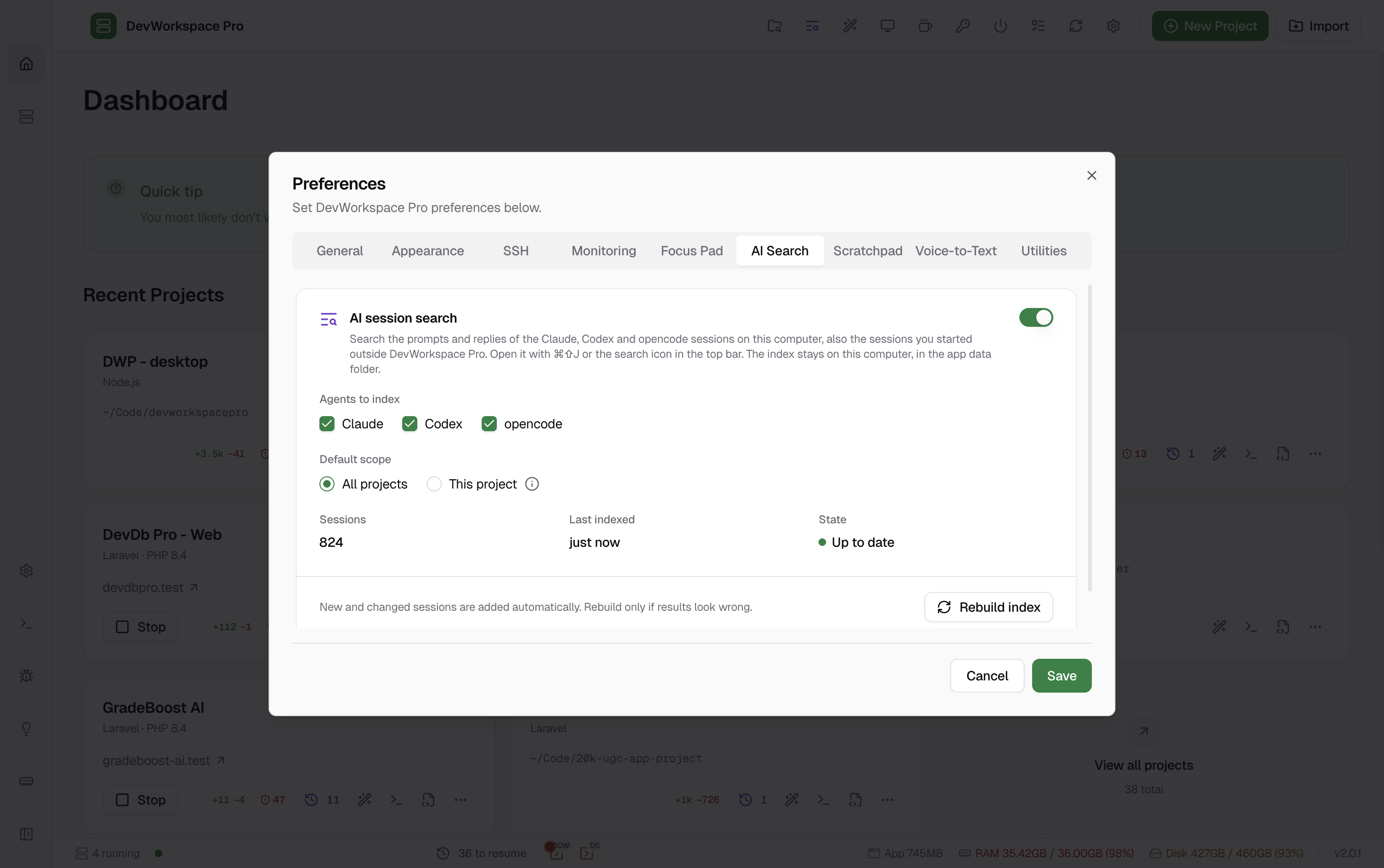
Open Preferences → AI Search.
| Setting | What it does |
|---|---|
| AI session search | Turns the search on or off. On by default. When it is off, DevWorkspace Pro does not read your sessions, and the search shows Open settings. |
| Agents to index | The tools whose sessions go into the index: Claude, Codex and opencode. All are on by default. |
| Default scope | The scope the search starts with: All projects (default) or This project. |
The section also shows the number of sessions in the index, when it last indexed, and its state: Up to date, Indexing… or Error.
Click Save to apply your changes.
Click Rebuild index to delete the index and build it again. You only need this when the results look wrong. You can keep using the app and the search while it rebuilds, and the session count goes up as it works.
Privacy
- The index stays on your computer, in the DevWorkspace Pro app data folder (
ai-session-index.sqlite). - DevWorkspace Pro does not send your sessions or the index to any server.
- DevWorkspace Pro only reads your session files. It never changes them.
- When you turn the search off, indexing stops.